Preparation
- Complete account setup, certificate, and API agreement before using the Fubon Neo API.
- See Installation and Version Compatibility for installation instructions and version compatibility.
- Next step: Quick Start or SDK Download.
| Item | Details |
|---|---|
| Product | Fubon Neo API |
| Requirements | Fubon Securities account, digital certificate, API agreement, and connection test |
| Primary platform | Windows (certificate tool and connection test helper) |
| Login | Certificate login |
| Next step | Installation and Version Compatibility / Quick Start |
Before starting with the Fubon Neo API, you must complete the following steps:
- Have your Fubon Securities account ready. If you do not have one, open an account online.
- Apply for a certificate.
- Sign the API risk disclosure and agreement: Online signing guide, then complete the API connection test with the Connection Test Helper (Windows).
Prepare Your Fubon Securities Account
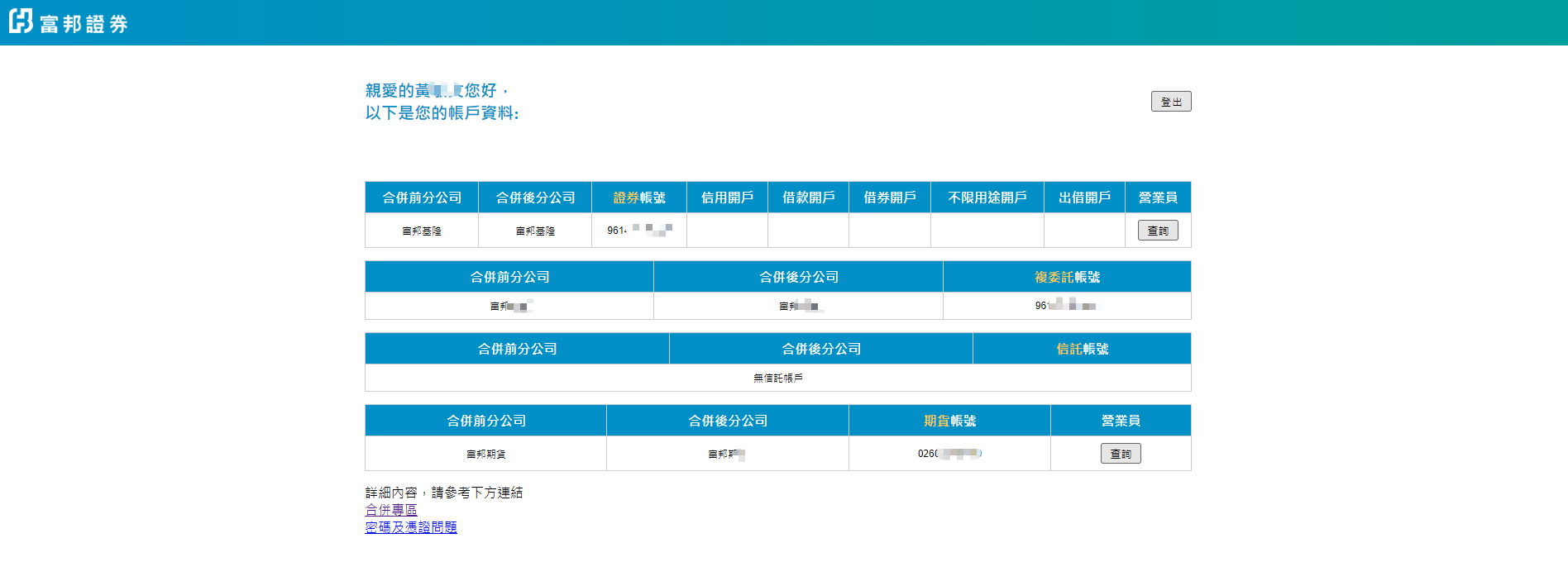
If you already have a Fubon Securities account, please skip this step. If you don’t have a Fubon Securities account, please open an account now.
Apply for a Certificate
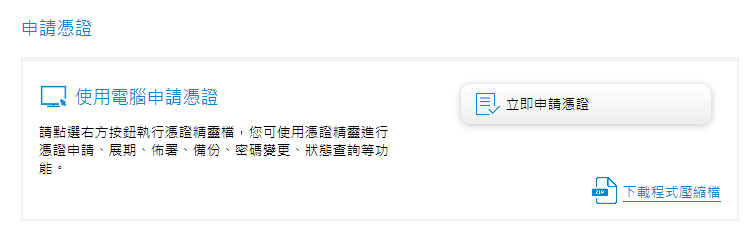
Go to Certificate Application and Renewal, select Run now, and download Fubon Securities Certificate Manager (TCEM.exe) to apply for a certificate.
After you log in and complete authentication, enter your mobile number or email address to receive the OTP verification code.
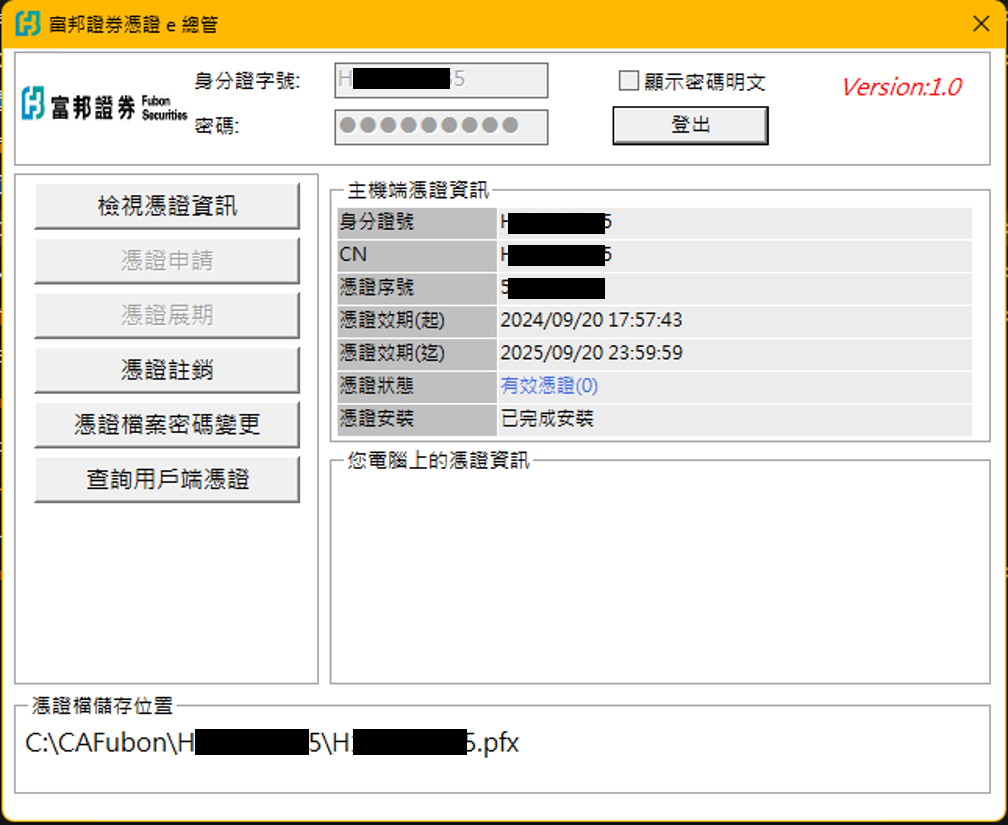
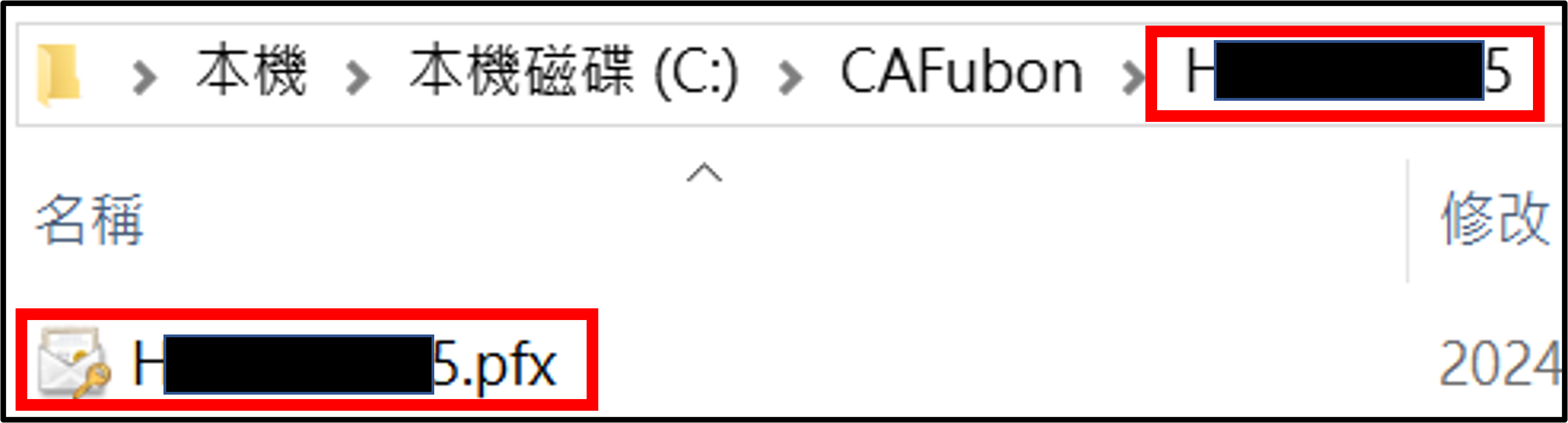
After the application is complete, the certificate is stored in C:\CAFubon\\(your ID number) and uses your ID number as its filename.
Sign the API Risk Disclosure and Agreement, Then Test the Connection
Sign Online
Use the following guide to sign the API agreement and test the API connection. Online Signing Guide

Connection Test
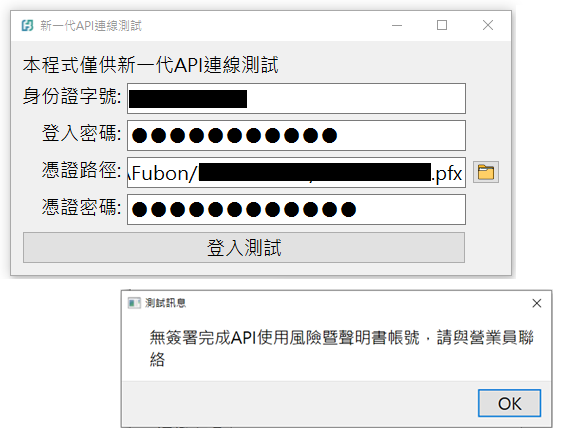
Download and use the connection test helper (Windows), or log in directly with the Fubon Neo API.
Installation and Version Compatibility
Read Installation and Version Compatibility to confirm the minimum version and installation method for each language, then download the installer from SDK Download.
Start Your Program Trading Journey
- Python
- Node.js
- C#
Use the following console command to install the SDK (please be advised that modify the .whl filename to the corresponding version downloaded).
pip install fubon_neo-<version>-cp37-abi3-win_amd64.whl
Support Python version 3.7 (~v1.3.2) and 3.8–3.13 (v2.0.1~, 3.14 not supported)
First, create a folder named 'project' and initialize it using the following command:
npm init
The file downloaded from the official website will be named fubon-neo-<version>.tgz, and place it in the folder you just created
Add a line to the package.json file inside the Node.js project.
"dependencies": {
  ...
  "fubon-neo": "file://<path-to-js-binary>/fubon-neo-<version>.tgz",
  ...
}
Then enter the following command in the command line
npm install
Node.js version 16 and above are supported
the downloaded filename should look like this FubonNeo.<version>.nupkg
for Visual Studio user, please refer to below tutorial.
-
Method 1 : Visual Studio Nuget Package Manager( Using .NET 7 as an example ) :
After placing the package under the newly added project, click
Tools->Nuget Package Manager->Nuget Package Settings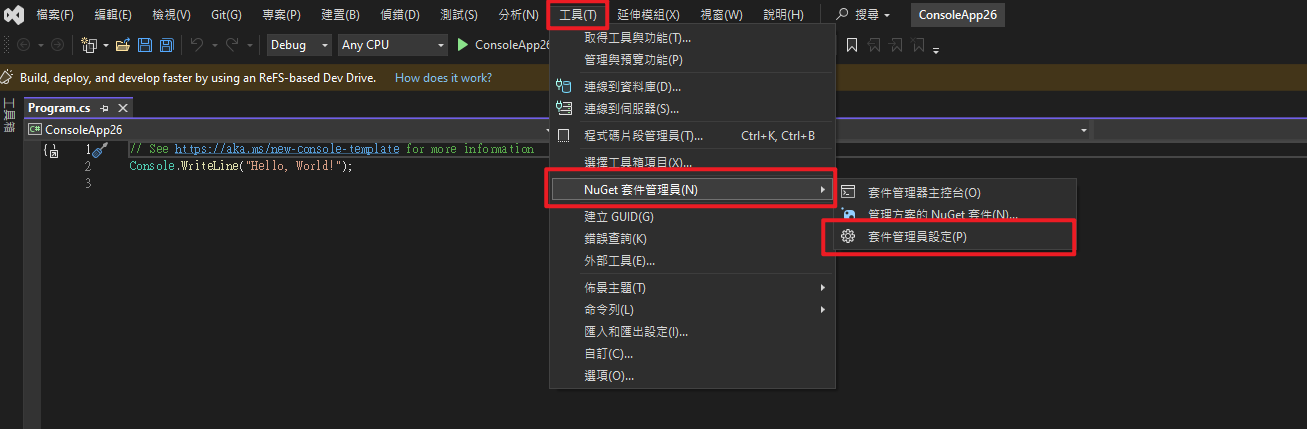
After popup window,
- Click on the upper-right corner
+ - Click on the bottom
...select the location to store the package - Rename package
- Click
Update - Click OK
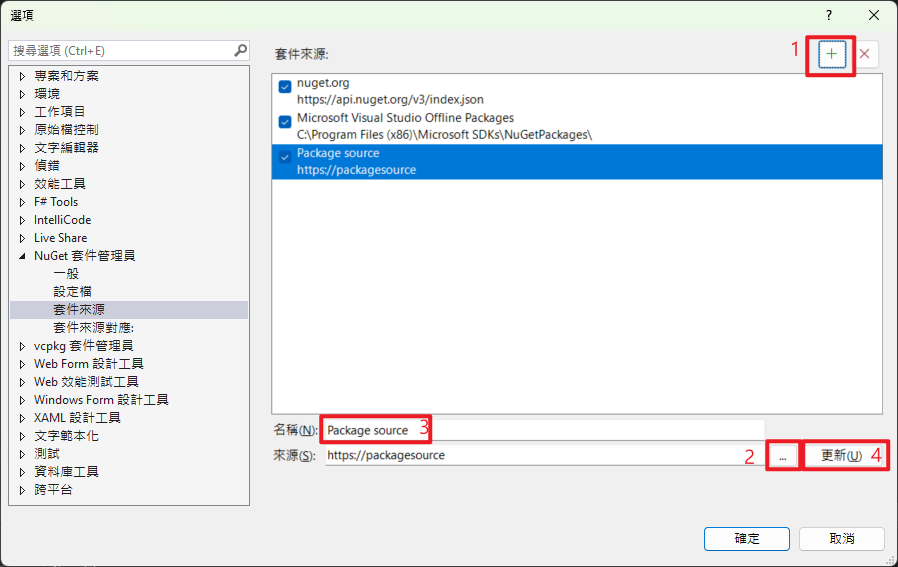
Click
Tools->Nuget Package Manager->Manage Nuget Packages for Solution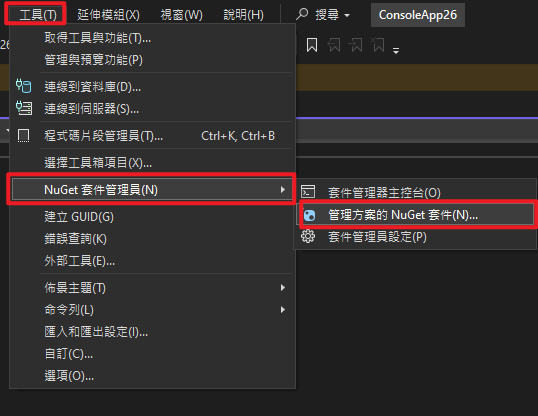
Next, select
- Package source, select the package name you named in the previous step
- Click Browse
- Click Package
- Select Project
- Install Package
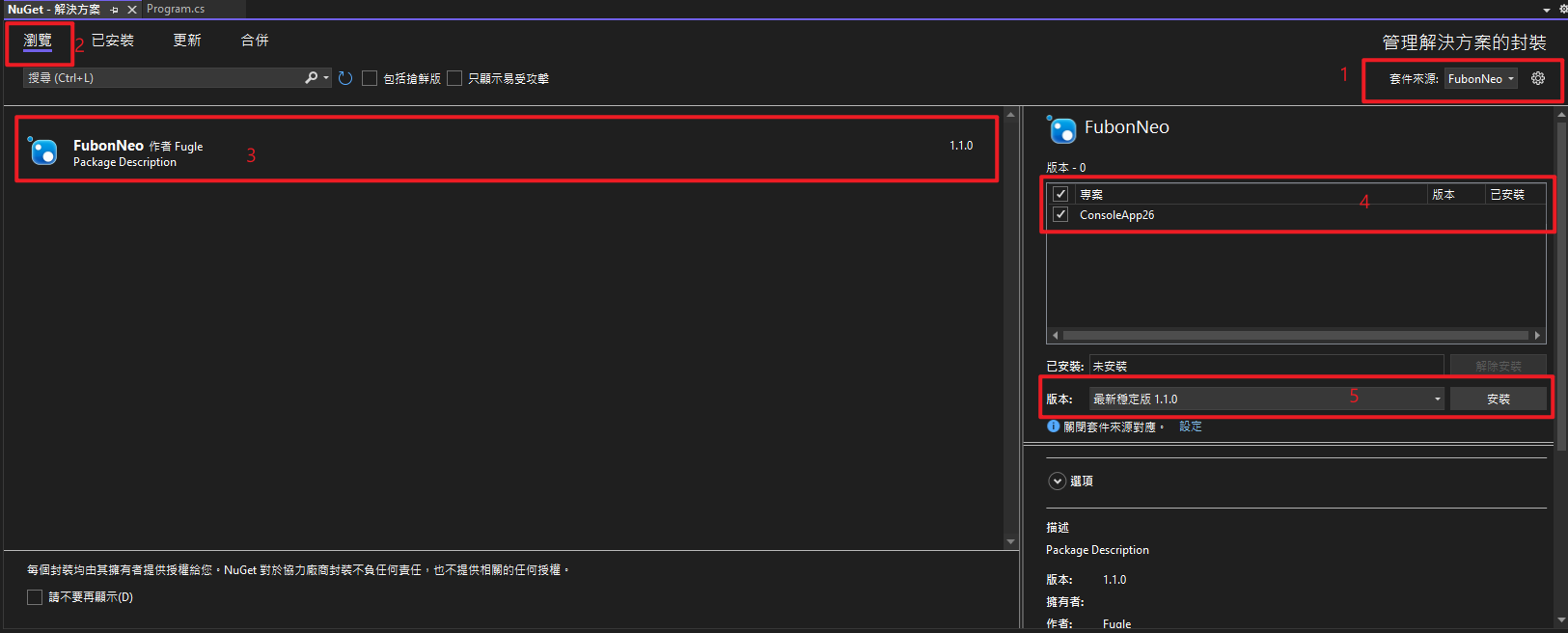
Finish ! You can using Fubon Neo SDK。
- Click on the upper-right corner
-
Method 2 : Visual Studio Nuget Package Manager( Using .NETFrame 4.7.2 as an example ) : After placing the package under the newly added project, click
Tools->Nuget Package Manager->Nuget Package SettingsAfter popup window,
- Click on the upper-right corner
+ - Click on the bottom
...select the location to store the package - Rename package
- Click
Update - Click OK
Click On the right-hand side in Solution Explorer
Switch between solutions and available views( Or you can open it by going to the 'View' menu at the top) , After opening the folder, locate the .csproj file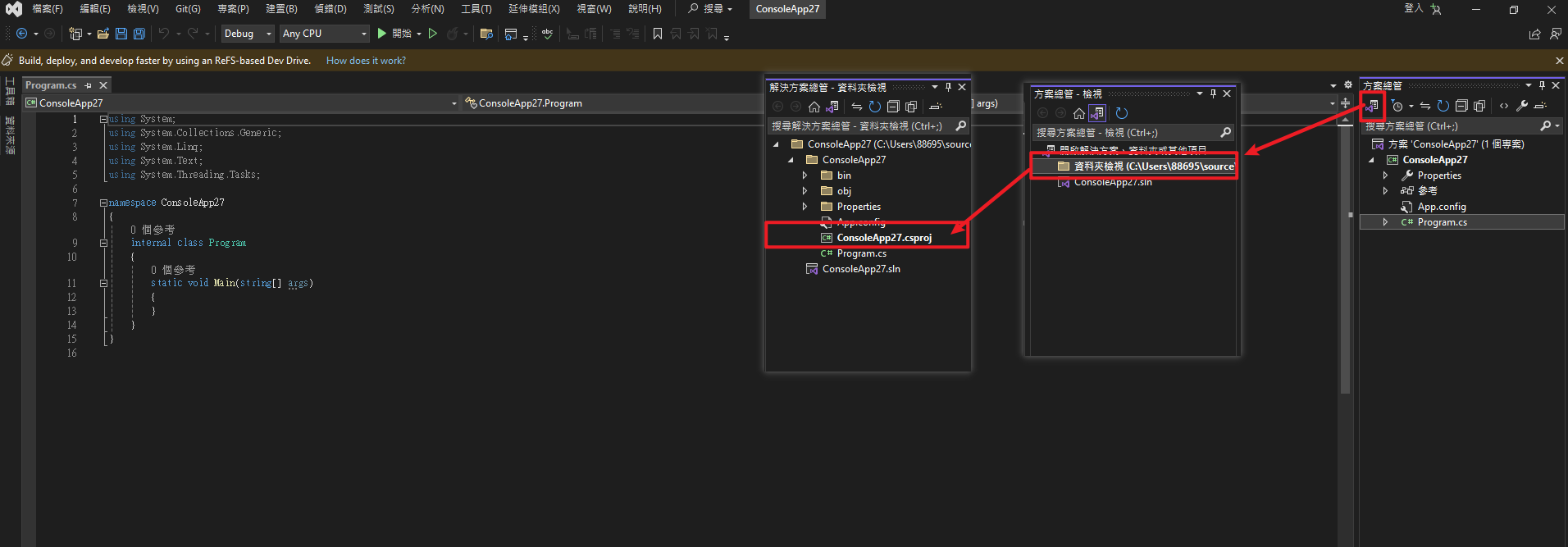
Inside the .csproj file, add an SDK reference (fill in the version according to the version number).
<ItemGroup>...<PackageReference Include="FubonNeo" Version="1.0.0" />...</ItemGroup>...Click on the
.slnfile in File Explorer, right-click on the project name, and select Reload Project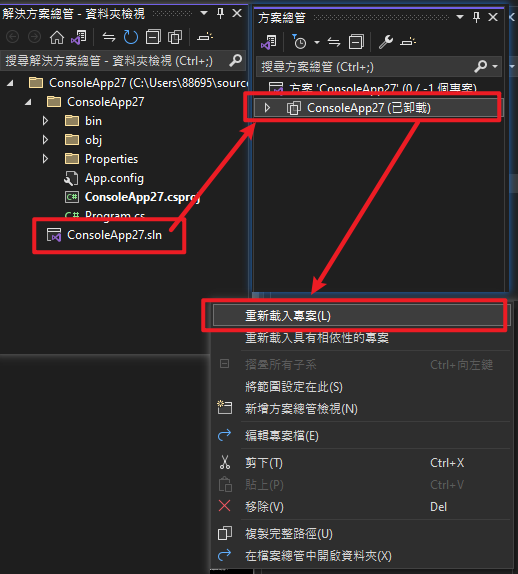 caution
The current package only supports 64-bit. If your development environment is set to 32-bit by default, you can adjust it following the steps below:
- Click on the top menu
Project - Select
Project Properties - Click on 'Build' on the left side, and change the platform target to x64
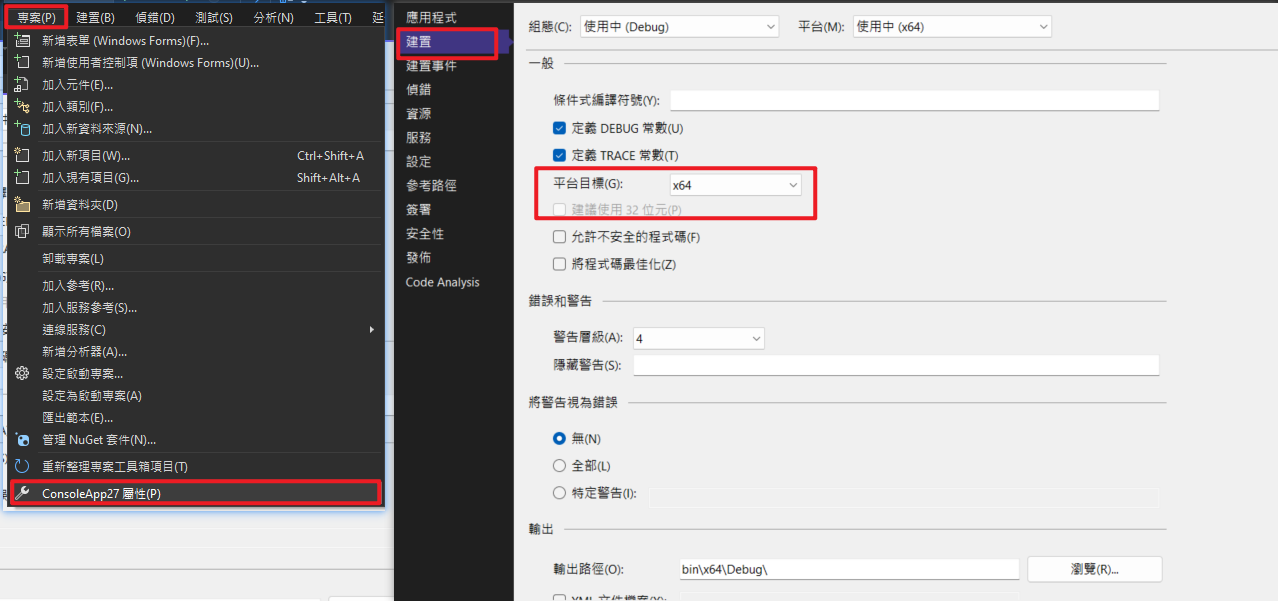
- Click on the upper-right corner
-
If you're not using Visual Studio NuGet Package Manager, you can use the Command Line as follows:
You can add a new nuget.config file under the project folder:
cd /Your Project path/cd .>nuget.config #Create nuget.configAnd copy and paste below content in the nuget.config
<?xml version="1.0" encoding="utf-8"?><configuration><packageSources><add key="nuget.org" value="https://api.nuget.org/v3/index.json" /><add key="local" value="./" /></packageSources><config><add key="repositoryPath" value="./" /></config><packageSourceMapping><!-- key value for <packageSource> should match key values from <packageSources> element --><packageSource key="nuget.org"><package pattern="*" /></packageSource><packageSource key="local"><package pattern="FubonNeo*" /></packageSource></packageSourceMapping></configuration>and then add sdk reference in the .csproj file (Vsesion base on downloaded package)
...<ItemGroup><PackageReference Include="FubonNeo" Version="1.0.0" /></ItemGroup>...and then restore the project in the command line
dotnet restore
C# develop .NET Standard 2.0 for the base , Suggest using .netcoreapp 3.1 and above; If using .NETFramework,suggest using .NETFramework 4.7.2 and above.
Start Your Program Trading Journey
- Python
- Node.js
- C#
from fubon_neo.sdk import FubonSDK, Order
from fubon_neo.constant import TimeInForce, OrderType, PriceType, MarketType, BSAction

# Connect and login
sdk = FubonSDK()

accounts = sdk.login("Your ID", "Your Password", "Your cert path", "Your cert password")
## accounts = sdk.login("Your ID", "Your Password", "Your cert path")  # If you use the "default" password for your certificate, for SDK v1.3.2 and newer versions

acc  = accounts.data[0]

# Create order object
order = Order(
  buy_sell = BSAction.Buy,
  symbol = "2881",
  price = "66",
  quamtity =  2000,
  market_type = MarketType.Common,
  price_type = PriceType.Limit,
  time_in_force= TimeInForce.ROD,
  order_type = OrderType.Stock,
  user_def = "From_Py"
)

# Place an order
order_res = sdk.stock.place_order(acc, order)
print(order_res[0])
Congratulations 🎊 after placing your order, you will be able to see the system's response.
Result { is_success: True, message: None, data : { date: "2023/10/13", seq_no: "00000000015", branch_no: "6460", account: "26", order_no: "bA626", asset_type: 0, market: "TAIEX", market_type: Common, stock_no: "2881", buy_sell: Buy, price_type: Limit, price: 66.0, quantity: 2000, time_in_force: ROD, order_type: Stock, is_pre_order: false, status: 10, after_price_type: Limit, after_price: 66.0, unit: 1000, after_qty: 2000, filled_qty: 0, filled_money: 0, before_qty: 0, before_price: 66.0, user_def: "From_Py", last_time: "16:48:09.247", error_message: None} }
const { FubonSDK, BSAction, TimeInForce, OrderType, PriceType, MarketType } = require('fubon-neo');

// Connect and login
const sdk = new FubonSDK();

const accounts = sdk.login("Your ID", "Your Password", "Your cert path", "Your cert password");
// const accounts = sdk.login("Your ID", "Your Password", "Your cert path");  // If you use the "default" password for your certificate, for SDK v1.3.2 and newer versions

const acc = accounts.data[0];

// Create order object
const order = {
buySell: BSAction.Buy,
symbol: 2881,
price: "66",
quantity: 2000,
marketType: MarketType.Common,
priceType: PriceType.Limit,
timeInForce: TimeInForce.ROD,
orderType: OrderType.DayTrade,
userDef: "from Js"
};

// Place an order
sdk.stock.placeOrder(acc, order);
Congratulations 🎊 after placing your order, you will be able to see the system's response.
{ isSuccess: true, data: { date : "2023/10/13", seqNo : "00000000016", branchNo : "6460", account : "26", orderNo : "bA627", assetType : 0, market : "TAIEX", marketType : "Common", stockNo : "2881", buySell : "Buy", priceType : "Limit", price : 66, "quantity" : 2000, timeInForce : "ROD", orderType : "DayTrade", isPreOrder : false, "status" : 10, afterPriceType : "Limit", afterPrice : 66, unit : 1000, afterQty : 2000, filledQty : 0, filledMoney : 0, beforeQty : 0, beforePrice : 66, userDef : "From JS", lastTime : "17:19:06.048" } }
using FubonNeo.Sdk;

// Connect and login
var sdk = new FubonSDK();

var acc_obj = sdk.Login("Your ID", "Your Password", "Your cert path", "Your cert password");
/*
// If you use the "default" password for your certificate, for SDK v1.3.2 and newer versions
var acc_obj = sdk.Login("Your ID", "Your Password", "Your cert path");
*/

var acc = acc_obj.data[0];

// Create order object
var order = new Order(
  BsAction.Buy,
  "2881",
  "66",
  2000,
  MarketType.Common,
  PriceType.Limit,
  TimeInForce.ROD,
  OrderType.DayTrade,
  "From C#"
);

// Place an order
var order_res = sdk.Stock.PlaceOrder(acc, order);
Console.WriteLine(order_res.data[0]);
Congratulations 🎊 after placing your order, you will be able to see the system's response.
{ isSuccess = True, message = , data = OrderResult{date = 2023/10/13, seqNo = 00000000016, branchNo = 6460, account = 26, orderNo = bA627, assetType = 0, market = TAIEX, marketType = Common, stockNo = 2881, buySell = 1, priceType = Limit, price = 66, quantity = 2000, timeInForce = ROD, orderType = DayTrade, isPreOrder = False, status = 10, afterPriceType = Limit, afterPrice = 66, unit = 1000, afterQty = 2000, filledQty = 0, filledMoney = 0, beforeQty = 0, beforePrice = 66, userDef = From C#, lastTime = 17:19:06.048, errorMessage = } }