API Key Application & Management
Available since v2.2.7
Starting from v2.2.8, exporting credentials after logging in on this page can be used to login API.
For the first time connection test, you must use a regular account/password plus a certificate. The API key login method cannot be used for the connection test.
You can still log in and use the API with your existing account credentials.
API Key is an optional feature that provides enhanced security and flexibility, ideal for advanced users.
Why Choose API Key?
- Granular Access Control: Restrict keys to specific functions (e.g., market data only, no order placement).
- IP Whitelisting: Allow access only from trusted IP addresses to reduce external risks.
- Quick Revocation: Disable a key instantly without affecting your main account.
This feature is not mandatory, but if you want to improve security or need more flexible integration, we recommend enabling API Key.
Please note! When there are changes to the API Key list (such as adding or removing keys), all sessions logged in using an API Key will be forcibly logged out.
The forced disconnect mechanism triggered by API Key permission changes has been adjusted to apply only to the keys affected by the change (Example: logged in simultaneously with key1 and key2; delete key1 => key1 session is forcibly disconnected; key2 session is not affected).
Apply for a Certificate
Before applying for an API Key, you must first apply for your web certificate. Once that's done, you can proceed with the API Key application.
-
Enter your ID number and corresponding password
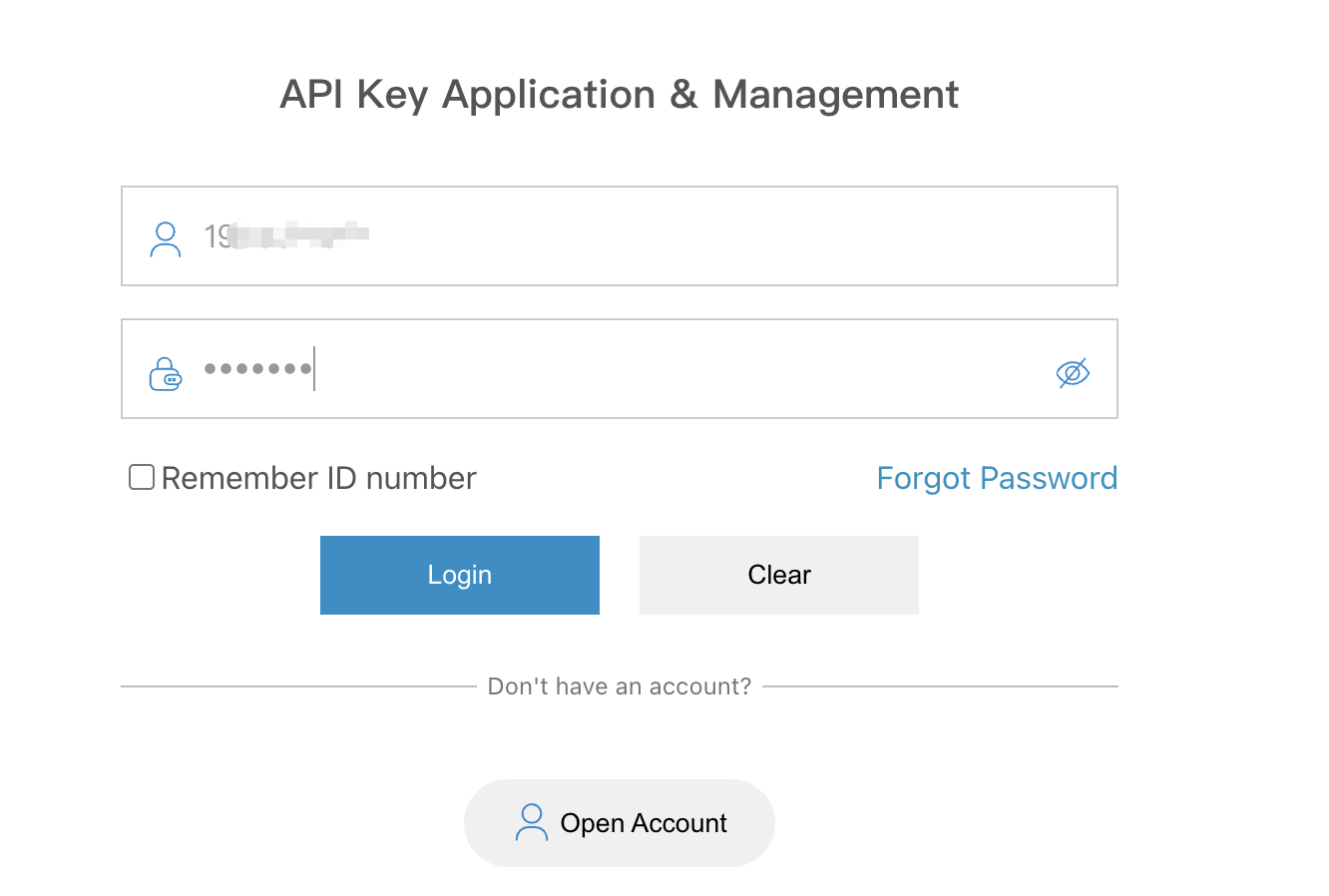
-
Apply for a web certificate and receive the OTP
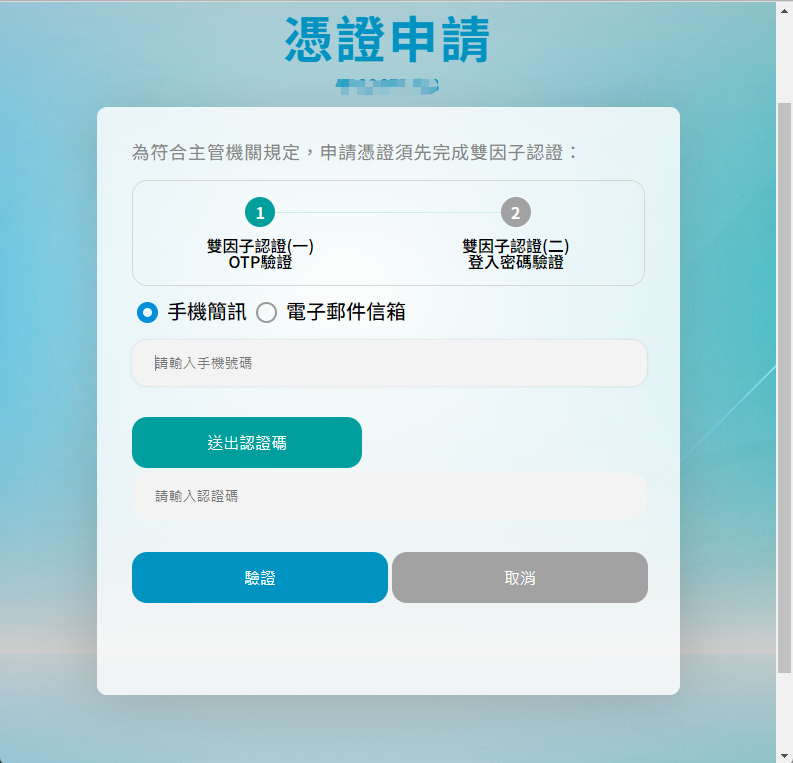
-
After completing the certificate application, you can export the certificate and add a new key

Use your login ID when prompted to enter the certificate password.
-
Apply for a key
-
Click
Add API Key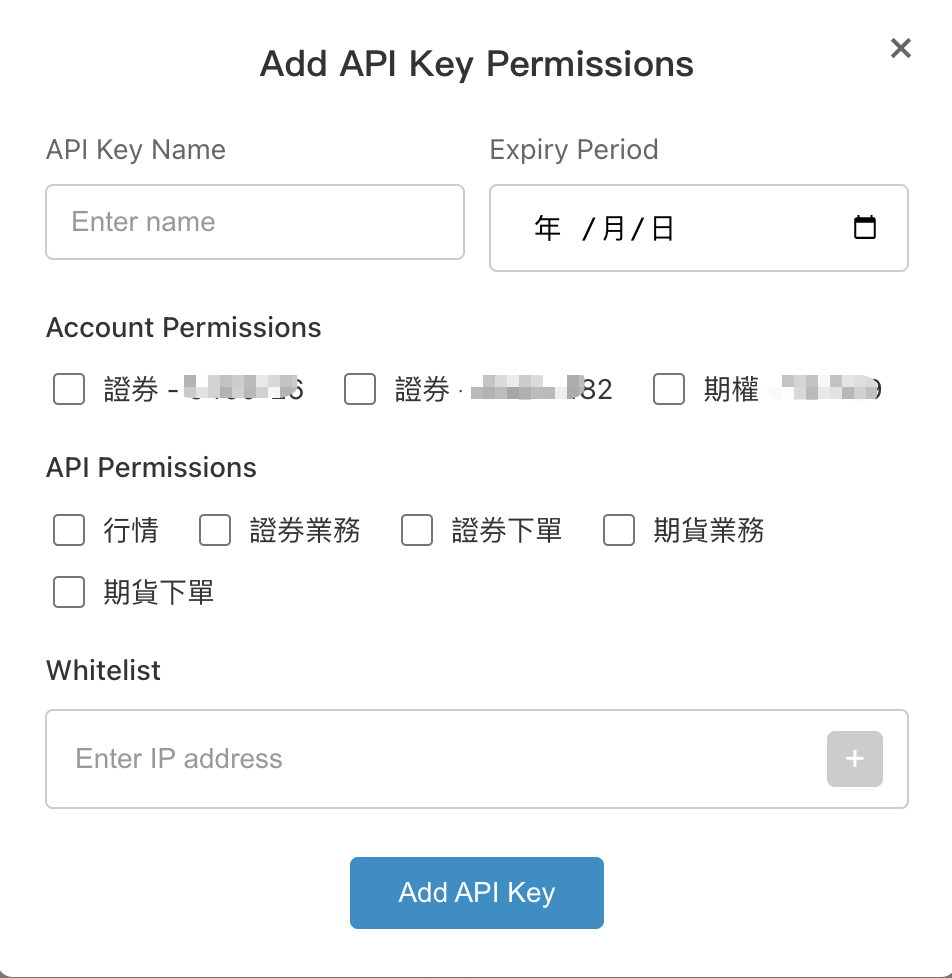
-
Set control permissions ( Leave IP or date blank if you do not want to set corresponding controls )
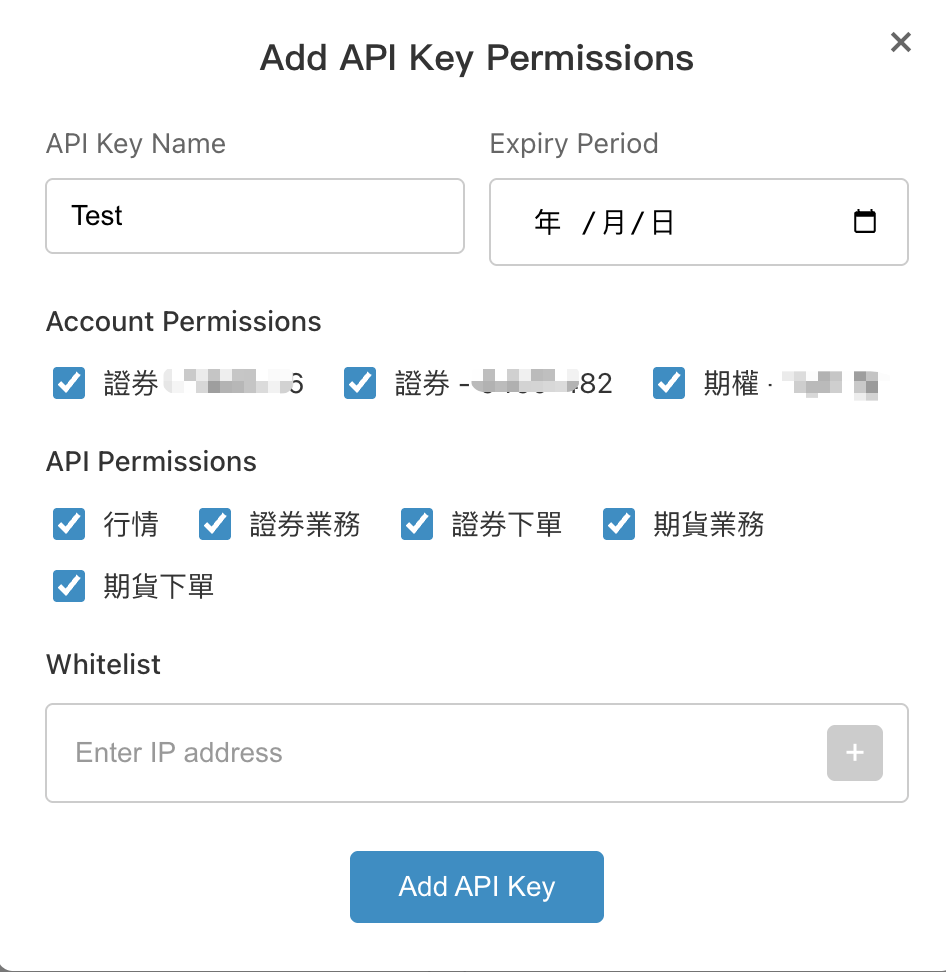
-
After successful setup, the Secret Key will be displayed ( Once the Secret Key is closed, it will no longer be shown )
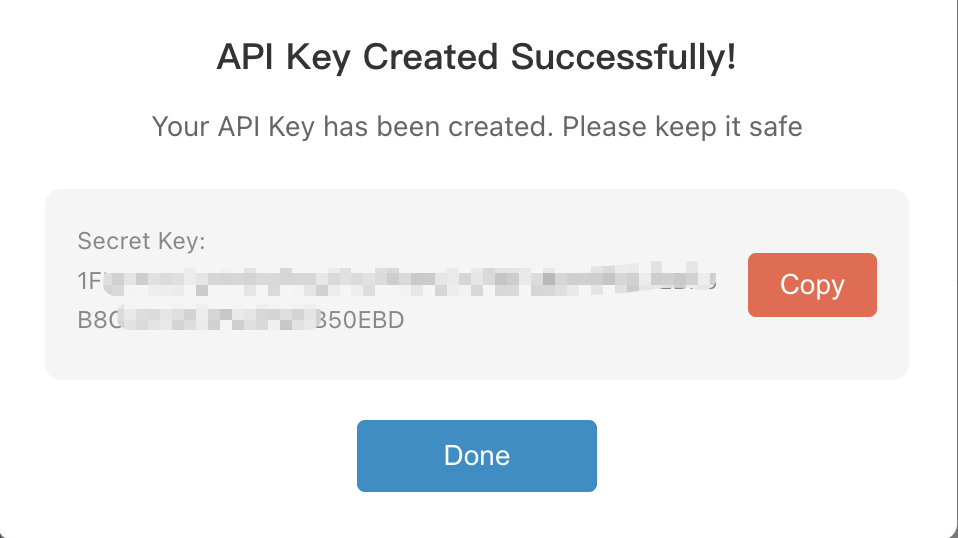
-
-
You can view previously applied keys or deactivate them ( You can activate for up to 30 keys at the same time )
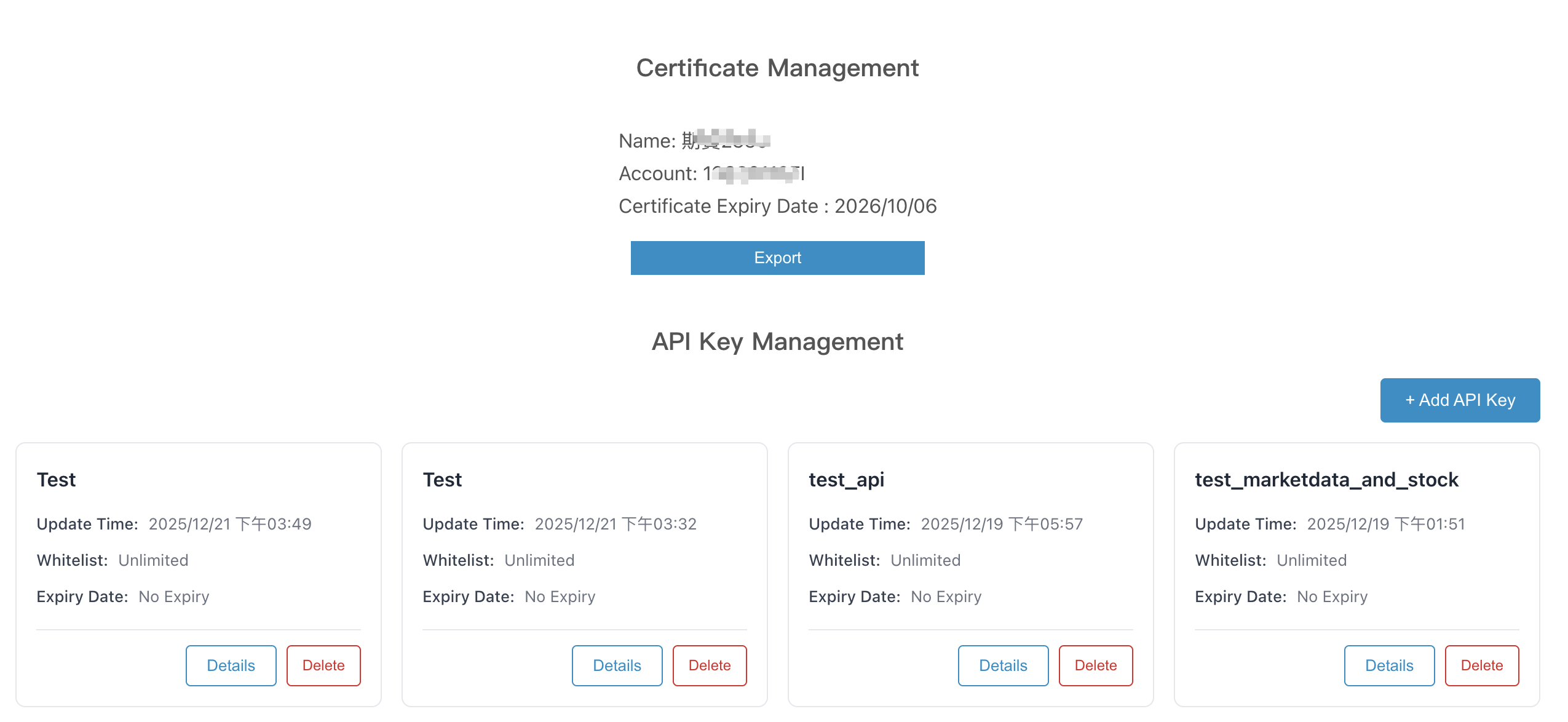
- Apply for and manage API Keys for the Fubon Neo API.
- API Keys can be used for login and permission control.
- After creation, you can review, update, or revoke keys.
| Item | Details |
|---|---|
| Feature | API Key application and management |
| Product | Fubon Neo API |
| Primary use | Login and permission control |
| Related pages | API Key Introduction / Apply for API Key |